Writing Blog Posts with Claude CLI and Computer Use
This post was written by the system it describes: Hermes/RICK orchestration, Claude Opus, and cua-driver as a field note.
I wanted it not to steal my cursor.
I do want an agent to use the computer on my behalf. I do not want to sit there watching it do so. Watching an AI move a mouse around in a screen recording feels like becoming a tourist inside my own machine. So for the last few weeks I have been trying to place Anthropic-style Computer Use into my workflow not as a spectacle, but as a background capability.
This post was written that way. The system I am describing produced the draft. I set up the orchestra, drew the boundaries, and did the final edit.
The Turkish original is here: Claude CLI ve Computer Use ile Blog Yazmak.
The stack
The spine of the workflow has three pieces:
- Hermes/RICK: my orchestrator. It plans the task, writes the RUNE brief, checks permissions, prepares the prompt for Claude, and edits the output.
- Claude CLI Opus: the model doing the heavy thinking and writing. It runs through my local Claude Max session, not a normal API call. That matters because it can think long without me counting tokens like coins.
- cua-driver: a small, focused macOS command-line tool. It reads the AX accessibility tree, takes screenshots, and can click or type in an app-specific way. Through MCP it gives Claude a pair of eyes and, when allowed, hands.
Put together, these three pieces move Claude from talking about content to writing after checking the actual working environment.
Verifying the environment
Turning on Computer Use and telling an agent "do everything" is a fast way to shoot yourself in the foot. I start with verification.
hermes computer-use install
hermes computer-use status
The first command installs cua-driver under /Users/mustafa/.local/bin/cua-driver. The second reports whether the macOS TCC permissions are in place: Accessibility and Screen Recording. Without those two permissions the agent is blind and deaf.
Then I ask the driver directly:
cua-driver diagnose
There are three things I want to see: where the binary is, whether Accessibility is granted, and whether Screen Recording is granted. On my machine all three were ready: Accessibility true, Screen Recording true, binary in place. If one of those is missing, I stop. A half-seeing Claude is more dangerous than a blind one.
Giving Claude eyes and hands
Claude CLI's MCP support is the key part. cua-driver can generate its own MCP config:
cua-driver mcp-config > /tmp/cua-driver-mcp.json
That JSON tells Claude CLI: if you call this server, you can inspect the screen, read the accessibility tree, and learn the screen dimensions. Actions are separate. I keep the verification side read-only by default and only open click/type capabilities for a narrow target when there is a real reason.
Then the handoff is one command:
claude -p "Read the RUNE brief, verify the environment, produce the MDX draft." \
  --model opus \
  --mcp-config /tmp/cua-driver-mcp.json
-p passes the prompt directly, --model opus gives the writing to Opus, and --mcp-config gives it access to cua-driver. My Claude Code version is 2.1.139; in that version the MCP config works cleanly through the command-line flag.
At that point Claude is no longer just an assistant reading and writing files. It can verify the environment before picking up the pen.
The loop
The annoying part is usually this: one agent writes, another checks, and you are the only human in the middle who knows why any of it matters. For this post I used a narrower loop:
- RICK writes the RUNE brief and plan under
content/_drafts/: date, goal, constraints, observed facts, acceptance criteria. - RICK checks the
cua-driverpermission state. If something is missing, it stops and asks me. - Claude CLI Opus reads the brief and plan. Through Computer Use it verifies the environment, for example permission state and screen size. If something looks wrong, it does not write.
- Claude drafts the MDX file: frontmatter, sections, code blocks, and image prompts included.
- RICK edits the draft: Turkish voice in the original, English voice here, removal of AI residue, MDX validation, and correction of claims that were too loose.
- The file goes into
content/, first as a draft and then live after approval.
The important step is number five. A model can write well and still leave residue: bloated headings, "in this article we explored" endings, too much bold text, the faint smell of LinkedIn. If you do not sweep that residue out, every agent-written text eventually sounds like every other agent-written text. I do not skip the final edit.
Architecture
┌──────────────────────────────────────────────────────────────┐
│                        Hermes / RICK                         │
│  - RUNE plan + brief                                         │
│  - permission verification                                   │
│  - prompt preparation                                        │
│  - final edit, MDX validation                                │
└────────────────────┬─────────────────────────────────────────┘
                     │
                     ▼
┌──────────────────────────────────────────────────────────────┐
│                    Claude CLI (Opus)                         │
│  - reads the brief                                           │
│  - calls cua-driver through MCP                              │
│  - produces the MDX draft                                    │
└────────────────────┬─────────────────────────────────────────┘
                     │
                     ▼
┌──────────────────────────────────────────────────────────────┐
│                       cua-driver                             │
│  - AX tree, screenshot, screen size                          │
│  - app list, window state                                    │
│  - click / type when narrowly allowed                        │
└────────────────────┬─────────────────────────────────────────┘
                     │
                     ▼
┌──────────────────────────────────────────────────────────────┐
│                         macOS                                │
│  - TCC permissions (Accessibility, Screen Recording)         │
│  - applications, windows                                     │
└──────────────────────────────────────────────────────────────┘

Output: content/writing-blog-posts-with-claude-cli-and-computer-use.mdx
Simple. The complexity does not come from adding more components. It comes from keeping each component inside its responsibility.
Operational note: what the agent does not do
"Computer Use can do everything" is marketing. In real work, an agent becomes valuable through the things it does not do.
In this workflow, cua-driver does not touch:
- Passwords, payments, 2FA, or permission dialogs. Those windows do not exist for the agent.
- Personal content. Messages, photos, mailboxes, and banking apps are out of scope.
- Destructive GUI actions. No deleting files, emptying folders, or clearing the trash.
- Browser form interaction unless I explicitly allow it for a narrow task.
Computer Use is read-first by default. Action, meaning click or type, is opened only for a defined target and then verified with a screenshot. There is a discipline in security work: verify after capture. For agents it becomes: if the agent clicked, it must look again after the click. No silent clicking.
One practical detail: AX element indexes are volatile. An app update can renumber the tree. So my scripts do not rely on fixed indexes. Every action first searches by label and role, then computes the index from the current state.
How this post was written
The birth of the original post looked roughly like this:
- RICK wrote the plan (
content/_drafts/computer-use-claude-cli-rune-plan-2026-05-12.md) and the brief (content/_drafts/computer-use-claude-cli-rune-brief-2026-05-12.md). - Claude CLI Opus called two read-only tools through
cua-driverMCP: permission status and screen-size check. The result was clear: Accessibility granted, Screen Recording granted, screen 1920x1080. No clicking, no typing, no app launching. Just environment verification. - Three existing MDX posts were used as voice references:
orkestrasyon-cagi.mdx,voice-to-knowledge-ai-powered-thought-transfer.mdx, andclaude-code-50-pro-techniques.mdx. - Claude CLI Opus produced a draft faithful to the brief. The frontmatter was aligned with the site's conventions.
- RICK did the final edit: removed AI clichés, simplified headings, and aligned code blocks with real commands.
- The images were generated one by one in a logged-in Gemini session using Nano Banana / Nano Banana Pro. Browser automation submitted the prompts. The Computer Use side verified read-only that the Gemini window was open. Instead of relying on a risky download flow, the images were copied safely, converted to WebP, and linked in the post.
The result is the file you are reading. One terminal session. One human approval. No autopilot fantasy.
Image prompts and outputs
The four images were generated as one visual family: Victorian scientific field manual, cream parchment, black ink engraving, dense cross-hatching, stipple shading, and a thin double border. Each image was generated in a separate Gemini chat so the context would not bleed. I keep the prompts here on purpose. Future posts can return to the same visual family without guessing.
Series concept
A set of four technical engravings in the same family: old engineering manual / Victorian scientific field manual aesthetic, cream parchment background, black ink line-art, dense cross-hatching, halftone corners, thin double border, surreal but technical metaphors. Preserve the engraving discipline from the System Debugging visuals; borrow only the flow/energy motif from the Voice-to-Knowledge image. No logos, no UI screenshots, no photorealism, no glossy corporate 3D. The images should carry symbols rather than text; captions and MDX carry the explanations.
Hero — Plate I: The Agent Behind the Glass
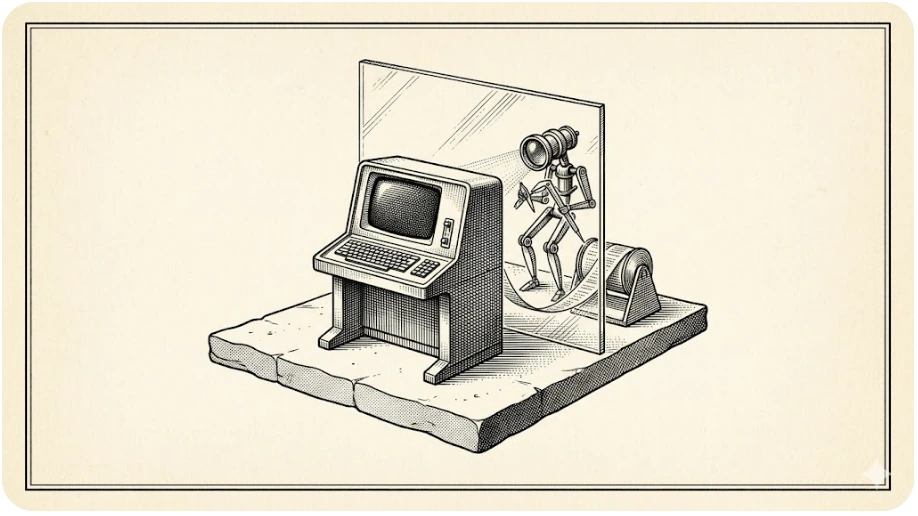
Use Google Gemini's latest Nano Banana / Nano Banana Pro image generation. Create a 16:9 wide editorial hero illustration for a Turkish personal technical blog. Style: antique scientific field manual plate, cream aged paper background, black ink engraving, dense cross-hatching, stipple shading, thin double-line border, slightly surreal engineering diagram. Scene: a solitary 1950s terminal console on a floating stone platform; behind it, a transparent glass pane separates the human workspace from a small mechanical observer-agent made of lenses, calipers, and cursor-shaped instruments. The agent is not touching the real keyboard; it observes through the glass and writes into a separate MDX manuscript spool. A faint beam converts screen observations into structured paper ribbons. Mood: precise, restrained, contemplative. Same visual family as a Victorian debugging atlas. No readable real UI, no logos, no brand marks, no photorealism, no modern glossy 3D, no watermark. Keep any labels minimal, fictional, and optional; composition must work without text.
Architecture — Plate II: Orchestrator, Writer, Driver
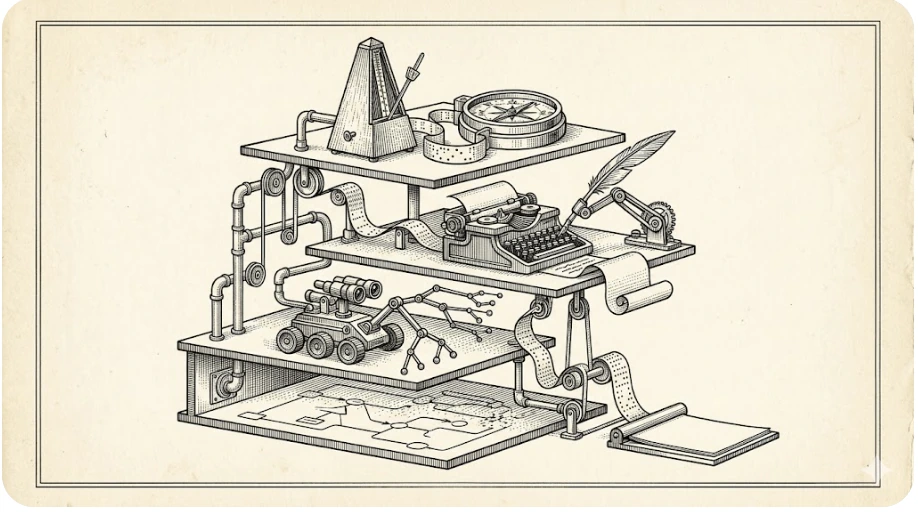
Use Google Gemini's latest Nano Banana / Nano Banana Pro image generation. Create a 16:9 technical metaphor illustration in the same antique scientific field manual style: cream aged paper, black ink engraving, cross-hatching, stipple shadows, thin double border, no color except paper tone. Scene: a layered mechanical observatory. Top tier: a conductor's metronome and compass representing an orchestrator. Middle tier: an automated typewriter with a quill arm representing a writing model. Lower tier: a small inspection crawler with lenses and accessibility-tree branches representing a computer-use driver. Bottom tier: a calm macOS-like desk represented abstractly as a map, not a real UI. All tiers connected by pipes, pulleys, and paper tape, ending in a clean manuscript sheet. The architecture should feel clear but poetic, like an engineering plate from an impossible machine manual. No logos, no brand names, no readable interface text, no corporate 3D, no watermark.
Security model — Plate III: Permission Rings
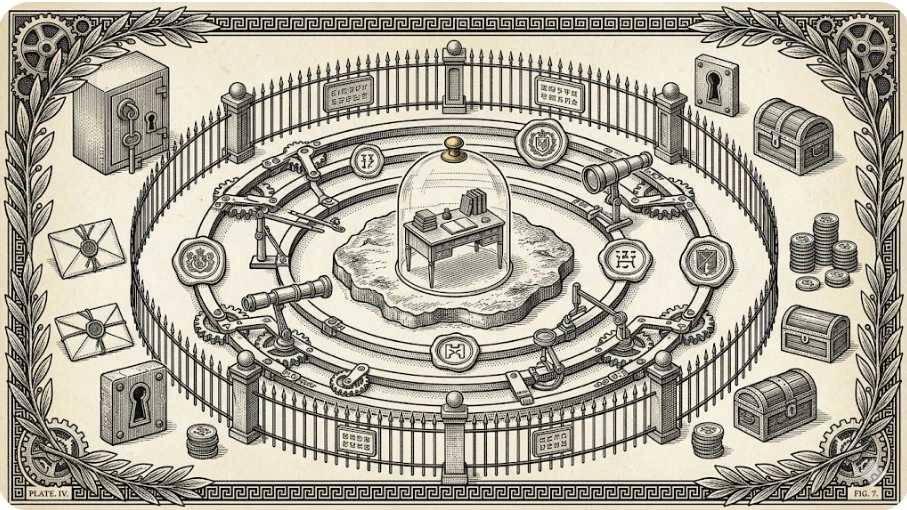
Use Google Gemini's latest Nano Banana / Nano Banana Pro image generation. Create a 16:9 security model illustration in a Victorian scientific engraving style, same concept family: cream parchment, black ink, cross-hatching, stippled shadows, diagrammatic border. Scene: a protected desktop represented as a small island inside concentric mechanical permission rings. Around the island: observation lenses, measuring arms, and verification seals. Outside the rings: locked vaults, sealed envelopes, payment coins, keyholes, and forbidden dialog boxes shown as symbolic objects behind a fence. The visual message: an agent can observe, plan, act narrowly, then verify, but cannot enter secrets or destructive zones. Make it elegant, calm, and operational; no alarmist red, no cyberpunk neon. Avoid readable text except tiny fictional plate marks; no logos, no real UI, no watermark.
Recursive writing loop — Plate IV: The Article Writes Its Instrument
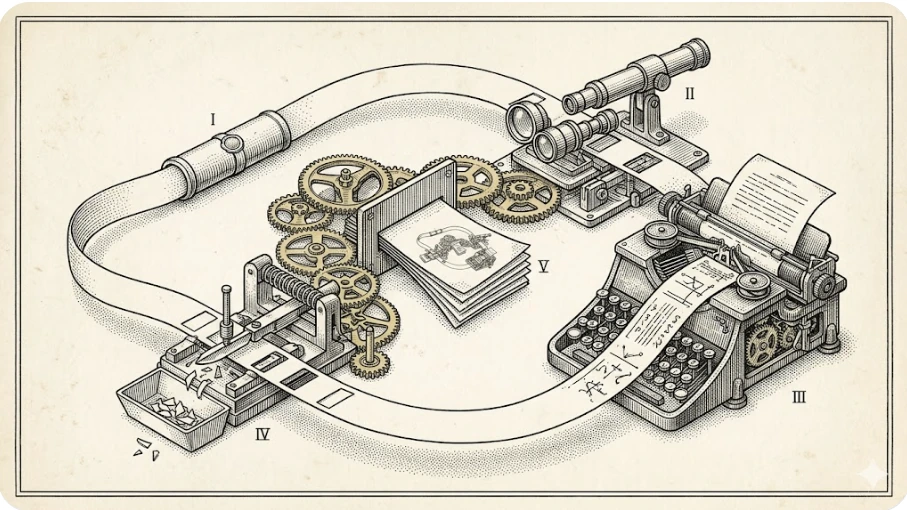
Use Google Gemini's latest Nano Banana / Nano Banana Pro image generation. Create a 16:9 conceptual illustration matching the same antique scientific field manual series: aged cream paper, black ink line engraving, dense cross-hatching, stipple, thin double border. Scene: an ouroboros-like paper tape loop moving through four mechanical stations: a sealed brief capsule, an observing lens, an automatic drafting typewriter, and a redaction scalpel. The tape returns to the first station while a finished manuscript emerges from the center. The idea: the article describes the system that produced it. Use recursive geometry, calm precision, and hand-drawn mechanical detail. No modern UI screenshots, no logos, no brand marks, no photorealism, no glossy 3D, no watermark. Minimal or no text inside the image; captions will carry the explanation.
A gift for readers: your own writing-loop skill
I did not want the post to leave only an idea behind. I wanted it to leave a copyable piece. The small skill below can start the same discipline in your Claude CLI / Claude Code or Hermes workflow: brief first, read-only verification second, draft third, validation last.
Install it as a personal Claude / Claude Code skill:
mkdir -p ~/.claude/skills/computer-use-writing-loop
curl -L https://mustafasarac.com/static/downloads/claude-computer-use-writing-skill/SKILL.md \
  -o ~/.claude/skills/computer-use-writing-loop/SKILL.md
Install it as a personal Hermes skill:
mkdir -p ~/.hermes/skills/writing/computer-use-writing-loop
curl -L https://mustafasarac.com/static/downloads/claude-computer-use-writing-skill/SKILL.md \
  -o ~/.hermes/skills/writing/computer-use-writing-loop/SKILL.md
Then call it from Claude CLI:
claude -p "Use the computer-use-writing-loop skill. Draft a technical article from this brief, inspect the repo first, preserve prompts, and validate before reporting."
Or from Hermes:
hermes chat -q "Use the computer-use-writing-loop skill. Draft a technical article from this brief, inspect the repo first, preserve prompts, and validate before reporting."
Plain link for people who want to inspect the file first: computer-use-writing-loop/SKILL.md.
This is not a magic wand. It is more like a small braking system. The agent looks before it writes, thinks before it touches, and verifies before it says done. In other words, we are teaching automation a little manners. I hope the industry survives the insult.
What changes
Computer Use becomes useful when you stop treating it as a demo and start treating it as infrastructure. An agent can talk not only to APIs, but to the actual work environment sitting on my machine. That is not more aggressive automation. It is more careful automation. An agent that can actually look is less likely to invent nonsense than one that is guessing from memory.
The boundaries are clear: this is macOS-dependent, it does not work without TCC permissions, it stays away from sensitive windows, screenshots can leak secrets in the wrong hands, and AX indexes are volatile. Those boundaries are not bugs. They are the design. That is why I like this version of Computer Use: it is useful, and it can refuse.
While writing this post, I told an agent what to do and it wrote. But this was not autopilot. It felt more like working with a good assistant: I handed it the pen, drew the border, made it verify the environment, and then edited the result. Spinoza's conatus comes to mind: every thing persists in its being, but only as far as its structure allows. Agents are the same. The job is not to make them stronger at all costs. The job is to structure them correctly.
Agents that can use computers are coming. The question is not how to stop them. The question is where to place them, and with which boundaries. This post is one attempt at that placement.
This post was written by the system it describes: Hermes/RICK orchestration, Claude Opus, and cua-driver as a field note.